Free tools Windows power users keep installed
One-click scans. No signup required.
Some links on this page are affiliate links: if you buy through them we may earn a commission, at no extra cost to you.
To compress a video on Android, first check your phone’s Gallery or Photos share/export menu for a size or resolution option. If your phone does not offer one, use an Android compressor app with a target-size or resolution control, or export through a video editor. Lower resolution, bitrate, frame rate, or duration creates a smaller copy, but can reduce detail, smoothness, or audio quality—so preview the result and keep the original until you have confirmed it works.
At a glance
| Name | Best for | Key spec | Platforms | Checked |
|---|---|---|---|---|
| Google Photos | Trying the built-in route first | Device-dependent “Compressed video” or “Reduce file size” option | Android | November 2026 |
| Samsung Gallery | Galaxy owners checking manufacturer tools | Gallery and sharing controls vary by model and software | Samsung Android phones | November 2026 |
| Video Compressor: Resize Video | Meeting a precise upload limit | Target-size field, resolution, bitrate, codec, trim, batch processing | Android | November 2026 |
| Compress Video | Simple resolution and compression presets | Output resolution, compression level, audio choice, save folder | Android | November 2026 |
| Squeeze: Video Compressor | Offline size estimates | Estimated output size and resolution; offline compression | Android | November 2026 |
| CapCut Video Compressor | Compressing while editing | Preview and export controls for resolution, frame rate and quality | Web browser; CapCut-supported devices | November 2026 |
| XConvert Android Video Compressor | One-off browser conversion without installing an app | Web-based Android compression workflow | Web browser | November 2026 |
What changes when you compress a video?
Compression makes a new, smaller file by removing visual or audio information and by encoding the remaining information more efficiently. The biggest controls are resolution (for example, 1080p to 720p), bitrate, frame rate, codec, and duration. Trimming unwanted opening or closing footage often reduces size without changing the remaining picture.
There is no universal Android compression screen. Menus depend on the phone maker, Gallery or Photos version, and Android software version. A control shown on one model may be absent on another, so treat built-in compression as the quickest option to check—not a guaranteed path.
Recommended Free Tools
How do I compress a video without installing an app?
Open the video in your phone’s Gallery or Photos app, inspect its edit, share, and export menus, and look for a size, resolution, or compression setting. Some Google Photos users report labels such as “Compressed video” or “Reduce file size,” but the Google Photos Help Community notes that this option is not universal (Google Photos Help Community).
Popular on Amazon

- HD streaming made simple: With America’s number 1 TV streaming platform,* exploring popular apps—plus tons of free movies, shows, and live TV—is as easy as it is fun. *Based on hours streamed—Hypothesis Group
- Compact without compromises: The sleek design of Roku Streaming Stick won’t block neighboring HDMI ports, and it even powers from your TV alone, plugging into the back and staying out of sight. No wall outlet, no extra cords, no clutter.
- No more juggling remotes: Power up your TV, adjust the volume, and control your Roku device with one remote. Use your voice to quickly search, play entertainment, and more.
- Shows on the go: Take your TV to-go when traveling—without needing to log into someone else’s device.
- TV, simplified: With setup that only takes minutes, a simple-to-navigate Home Screen, and an uncluttered remote control that does all you need—Roku makes it easier to watch the TV you love.
- Open Gallery or Google Photos and select the video.
- Tap Edit, Share, or the three-dot menu.
- Choose an available resize, export, or compressed-video option.
- Select the smaller resolution or quality setting, if offered.
- Save as a copy, then play the new file and check its size in the file details.
Samsung and other manufacturers can add their own Gallery tools. The exact labels and locations change with the model, so check the current menus on your phone rather than following a path from a different Galaxy generation.
Which Android tools can compress a video?
1. Video Compressor: Resize Video: best for a strict upload ceiling
Video Compressor: Resize Video is the most suitable option when a service specifies a maximum file size. Its Google Play listing describes a target-size field alongside presets such as 720p and up-to-1080p, custom resolution and bitrate controls, codec selection, trimming, audio removal, and batch processing.
- Workflow: select a clip, enter or choose a target, review the estimate, compress, and preview the saved copy.
- Useful controls: resolution, bitrate, codec, trimming, audio removal, and multiple-file processing.
- Platform: Android via Google Play.
- Limits: the estimate is not the same as the final file size; leave margin under an upload service’s ceiling. Codec and bitrate changes can affect compatibility and visible quality.
2. Compress Video: best for straightforward presets
Compress Video focuses on selecting an output resolution and compression level. Its listing also describes choosing whether to keep or remove audio, selecting a destination folder, and preserving the original file.
PC Slower Than It Used to Be?
A free scan shows the junk files, broken settings and background clutter dragging Windows down - then fixes them in one click.Free scan · Windows 10 & 11Crashes, No Sound, or Screen Glitches?
Random freezes, missing sound and display glitches usually trace back to one bad driver. Find and replace yours safely.Free scan · under a minute- Workflow: choose the source video, set resolution and compression level, decide on audio, select the save folder, and export.
- Platform: Android via Google Play.
- Useful when: you want a separate, smaller copy without changing the original.
- Limits: it is not documented as a target-byte calculator, so use the output file’s actual size before attempting an upload with a hard limit.
3. Squeeze: Video Compressor: best for offline processing and estimates
Squeeze: Video Compressor lists offline compression and displays estimated output size and resolution. That makes it useful when you want to see the likely result before committing the export or when you prefer not to send the clip to a server.
- Platform: Android via Google Play.
- Workflow: select a clip, review the estimated size and resolution, export, and verify the resulting file.
- Limits: an estimate can differ from the completed file, and lower settings can soften detail or introduce motion artifacts. Keep the source until the copy is checked.
4. Google Photos: best first check on a phone you already use
Google Photos is worth checking before installing anything because the app may expose a compressed-video or reduced-file-size action in its share or editing flow. The availability is device- and version-dependent, and the Help Community discussion does not establish a universal menu.
Also popular on Amazon

- Ultra-speedy streaming: Roku Ultra is 30% faster than any other Roku player, delivering a lightning-fast interface and apps that launch in a snap.
- Cinematic streaming: This TV streaming device brings the movie theater to your living room with spectacular 4K, HDR10+, and Dolby Vision picture alongside immersive Dolby Atmos audio.
- The ultimate Roku remote: The rechargeable Roku Voice Remote Pro offers backlit buttons, hands-free voice controls, and a lost remote finder.
- No more fumbling in the dark: See what you’re pressing with backlit buttons.
- Say goodbye to batteries: Keep your remote powered for months on a single charge.
- Platform: Android.
- Best use: a quick, occasional reduction when the option appears in the current app.
- Limits: there may be no local compression control on your phone, and the menu may not offer a target byte size or detailed bitrate and codec settings.
5. Samsung Gallery: best for checking Galaxy-specific sharing tools
Samsung phones can include manufacturer-specific Gallery and sharing controls, so Galaxy owners should inspect the video’s current Edit, Share, and overflow menus before installing a separate compressor. Android coverage identifies Samsung’s built-in storage and media tools as distinct from Google’s controls (TechRadar’s Android storage guide).
- Platform: Samsung Android phones.
- Best use: using tools already integrated with the phone’s Gallery and sharing workflow.
- Limits: labels, locations, and available export choices vary by Galaxy model, One UI version, and the installed Gallery app. Do not assume a control shown on one Samsung phone exists on another.
6. CapCut Video Compressor: best when an edit and compression are part of the same job
CapCut’s video-compressor guide describes importing a video, previewing it, adjusting export controls, and saving the result. The documented controls include resolution, frame rate, and quality; lowering any of these can reduce the output size.
- Platform: CapCut-supported devices and a web browser through its online tool.
- Best use: trimming, reframing, or otherwise editing a clip before exporting a smaller version.
- Limits: the online workflow requires uploading the media to a web service, so consider the footage’s privacy requirements. The page does not promise a particular final file size or lossless output.
7. XConvert Android Video Compressor: best for a one-off browser conversion
XConvert’s Android compression guide documents a browser-based method for reducing a video without installing an Android app. It can be convenient when you have little app storage or need a single conversion.
- Platform: web browser on Android.
- Best use: occasional compression when installing an app is undesirable.
- Limits: browser processing depends on the connection and the service’s current workflow. Do not upload confidential footage unless its handling and retention terms meet your requirements; download and verify the result before deleting the source.
How do I choose the right compression settings?
Start with the destination, then make the smallest quality concession that meets its limit. For messaging or email, trimming and a modest resolution reduction are usually less destructive than an aggressive bitrate cut. For a service with a hard byte ceiling, use a target-size control when available and leave a margin below the stated maximum.
| Goal | First adjustment | What to watch |
|---|---|---|
| Remove a few megabytes | Trim unused footage or reduce quality slightly | Check that text and faces remain clear |
| Share a 4K recording | Export at 1080p or 720p | Fine detail and cropping latitude decrease |
| Reduce a high-frame-rate clip | Lower frame rate when slow motion is unnecessary | Fast movement may look less smooth |
| Meet a stated upload limit | Enter a target size in a tool that supports it | Confirm the actual file size; estimates can be off |
| Keep dialogue but shrink the file | Retain audio and reduce video resolution or bitrate | Removing audio saves space but removes the soundtrack |
Do not promise “no quality loss.” Every smaller lossy export can remove information, and repeated re-encoding can compound artifacts. Export once from the highest-quality original, compare the copy on the device or service where it will be viewed, and keep the original until delivery is confirmed.
Also popular on Amazon

- 4K streaming made simple:With America’s number 1 TV streaming platform,* exploring popular apps—plus tons of free movies, shows, and live TV—is as easy as it is fun. *Based on hours streamed—Hypothesis Group
- 4K picture quality: With Roku Streaming Stick Plus, watch your favorites with brilliant 4K picture and vivid HDR color.
- Compact without compromises: Our sleek design won’t block neighboring HDMI ports, and it even powers from your TV alone, plugging into the back and staying out of sight. No wall outlet, no extra cords, no clutter.
- No more juggling remotes: Power up your TV, adjust the volume, and control your Roku device with one remote. Use your voice to quickly search, play entertainment, and more.
- Shows on the go: Take your TV to-go when traveling—without needing to log into someone else’s device.
Does Google Photos Storage saver compress a local Android video?
No. Google Photos’ Original quality and Storage saver settings control how backed-up media is stored in the cloud; they are not a general command to create a smaller local attachment. Storage saver can reduce the quality of some backed-up video, while Free up space removes eligible local copies after backup rather than shrinking those files in place (Melbourne PC User Group’s Google Photos overview).
What’s actually slowing this PC down?
Pick the symptom - the matching free tool is one click away.
If your goal is an email or message attachment, make a separate compressed local copy with Gallery, an app, or an editor. If your goal is phone storage, confirm that backup has completed before using a cleanup command, because cleanup can remove the only local copy.
What should I check after compression?
- Open the exported file from the folder where the tool saved it.
- Play the entire clip, including dialogue, music, and fast movement.
- Inspect small text, faces, dark scenes, and any footage that will be cropped.
- Check the file size and confirm the format plays in the destination app.
- Send or upload the copy before deleting the original.
If the file is still too large, trim more duration or make one further export at a lower resolution or bitrate. If it looks poor, return to the original and use a less aggressive setting; repeatedly compressing the already-compressed copy will not restore lost detail.
How we picked these Android compression options
The ranking prioritizes a practical path from least effort to most control: built-in phone tools first, then apps with explicit size or quality controls, followed by editor and browser workflows. Other decision points are whether the tool creates a separate local file, offers target-size, resolution, bitrate, frame-rate, codec, trimming, or audio controls, supports offline processing, preserves the original, and makes the destination folder clear. The listed capabilities come from the linked product pages and documentation; output quality, speed, advertising, privacy, and current purchase requirements can vary by version and were not independently benchmarked here.
Frequently Asked Questions
Can I compress a video while keeping the same resolution?
Yes, if the tool lets you lower bitrate or choose a more efficient codec while retaining the original pixel dimensions. The file may still become visibly softer or show banding, especially in fast motion or dark scenes, so preview the export rather than judging by resolution alone.
Also popular on Amazon
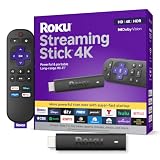
- Stunning 4K and Dolby Vision streaming made simple: With America’s number 1 TV streaming platform,* exploring popular apps—plus tons of free movies, shows, and live TV—is as easy as it is fun. *Based on hours streamed—Hypothesis Group
- Breathtaking picture quality: Stunningly sharp 4K picture brings out rich detail in your entertainment with four times the resolution of HD. Watch as colors pop off your screen and enjoy lifelike clarity with Dolby Vision and HDR10+.
- Seamless streaming for any room: With Roku Streaming Stick 4K, watch your favorite entertainment on any TV in the house, even in rooms farther from your router thanks to the long-range Wi-Fi receiver.
- Shows on the go: Take your TV to-go when traveling—without needing to log into someone else’s device.
- Compact without compromises: Our sleek design won’t block neighboring HDMI ports, so you can switch from streaming to gaming with ease. Plus, it’s designed to stay hidden behind your TV, keeping wires neatly out of sight
Why is my compressed video still too large for email?
Email services impose their own attachment limits, and a small change in resolution may not remove enough bytes. Trim duration, use a target-size field when available, and leave a margin below the limit because the final file can differ from an estimate.
Is it safer to compress a private video offline?
An offline Android app keeps processing on the device according to its stated behavior, while a browser compressor or online editor requires uploading the media. For confidential footage, prefer a clearly offline workflow and review the app’s current permissions and privacy terms before selecting files.
Where does Android save the compressed copy?
The destination depends on the app: some let you choose a folder, while others create a dedicated output directory. Check the export confirmation or file manager immediately after compression, and rename the copy so it cannot be confused with the original.
Can I delete the original as soon as compression finishes?
Wait until the copy has played correctly and completed its upload or delivery. A successful export does not guarantee that the file is compatible with the recipient’s app, and deleting the source removes your best option for making a higher-quality replacement.
Frequently Asked Questions
Can I compress a video while keeping the same resolution?
Yes, if the tool lets you lower bitrate or choose a more efficient codec while retaining the original pixel dimensions. The file may still become visibly softer or show banding, especially in fast motion or dark scenes, so preview the export rather than judging by resolution alone.
Also popular on Amazon

- The Google TV Streamer (4K) delivers your favorite entertainment quickly, easily, and personalized to you[1,2]
- HDMI 2.1 cable required (sold separately)
- See movies and TV shows from all your services right from your home screen[2]; and find new things to watch with tailored recommendations for everyone in your home based on their interests and viewing habits
- If you find an interesting show or movie on your TV, mobile app, or Google search, you can easily add it to your watchlist, so it’s ready when you are[2]
- Up to 4K HDR with Dolby Vision delivers captivating, true-to-life detail[4]; and you can connect speakers that support Dolby Atmos for more immersive 3D sound
Why is my compressed video still too large for email?
Email services impose their own attachment limits, and a small change in resolution may not remove enough bytes. Trim duration, use a target-size field when available, and leave a margin below the limit because the final file can differ from an estimate.
Is it safer to compress a private video offline?
An offline Android app keeps processing on the device according to its stated behavior, while a browser compressor or online editor requires uploading the media. For confidential footage, prefer a clearly offline workflow and review the app’s current permissions and privacy terms before selecting files.
Where does Android save the compressed copy?
The destination depends on the app: some let you choose a folder, while others create a dedicated output directory. Check the export confirmation or file manager immediately after compression, and rename the copy so it cannot be confused with the original.
The Tool Desk
Outbyte PC Repair FREERepair Windows errors before they cause bigger problemsFix Now →Outbyte Driver Updater FREEFix the driver behind crashes, sound loss and screen glitchesFind Drivers →Can I delete the original as soon as compression finishes?
Wait until the copy has played correctly and completed its upload or delivery. A successful export does not guarantee that the file is compatible with the recipient’s app, and deleting the source removes your best option for making a higher-quality replacement.






Say something about this film